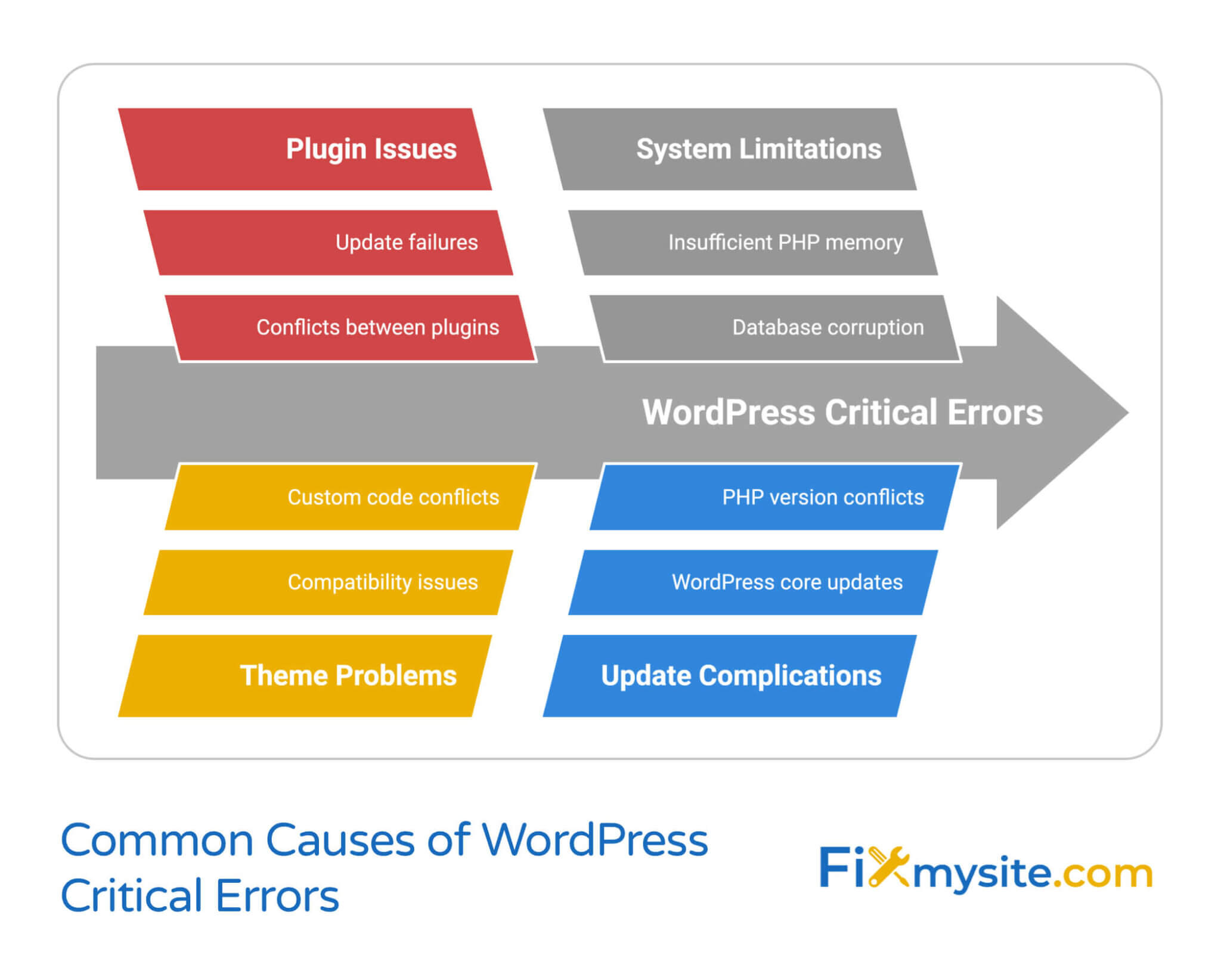
Encountering a WordPress Critical Error can be a daunting experience for any website owner or administrator. This error typically indicates a severe issue that prevents your WordPress site from functioning correctly. Understanding the causes and solutions for a WordPress Critical Error is crucial for maintaining the health and performance of your website. This guide will walk you through the common causes of this error, how to diagnose it, and effective steps to resolve it.
Understanding the WordPress Critical Error
A WordPress Critical Error is a broad term that encompasses various issues that can bring your site to a grinding halt. This error message is designed to protect your site from further damage by preventing it from loading. Common symptoms include:
- A white screen with the message "There has been a critical error on your website."
- Your site becoming inaccessible.
- Error logs indicating fatal errors.
This error can be triggered by a variety of factors, including plugin conflicts, theme issues, server problems, and more. Identifying the root cause is the first step in resolving the issue.
Common Causes of WordPress Critical Error
Several factors can lead to a WordPress Critical Error. Understanding these causes can help you diagnose and fix the problem more efficiently.
Plugin Conflicts
Plugins are essential for extending the functionality of your WordPress site, but they can also be a common source of conflicts. Incompatible or poorly coded plugins can cause critical errors. To identify if a plugin is the culprit:
- Deactivate all plugins via the WordPress dashboard or by renaming the plugins folder via FTP.
- Reactivate each plugin one by one to pinpoint the problematic plugin.
🔍 Note: Always keep your plugins updated to the latest versions to minimize the risk of conflicts.
Theme Issues
Your WordPress theme can also cause critical errors, especially if it is outdated or poorly coded. To check if your theme is the problem:
- Switch to a default WordPress theme like Twenty Twenty-One.
- If the site loads correctly, the issue is likely with your current theme.
🔍 Note: Regularly update your theme and ensure it is compatible with your version of WordPress.
Server Problems
Server-related issues, such as insufficient memory or misconfigurations, can also trigger a WordPress Critical Error. To diagnose server problems:
- Check your server error logs for any indications of memory limits or other server-related issues.
- Increase the memory limit in your wp-config.php file by adding the following line:
define(‘WP_MEMORY_LIMIT’, ‘256M’);
If the error persists, contact your hosting provider for further assistance.
File Permissions
Incorrect file permissions can prevent WordPress from accessing necessary files, leading to critical errors. To check and correct file permissions:
- Ensure that your WordPress files have the correct permissions. Typically, directories should be set to 755 and files to 644.
- Use an FTP client or your hosting control panel to adjust permissions.
🔍 Note: Be cautious when changing file permissions, as incorrect settings can expose your site to security risks.
Database Issues
Corrupted or misconfigured database tables can also cause critical errors. To troubleshoot database issues:
- Use a tool like phpMyAdmin to check for any errors in your database.
- Repair and optimize your database tables using the following SQL commands:
REPAIR TABLE table_name;
OPTIMIZE TABLE table_name;
Replace `table_name` with the name of the table you want to repair.
Diagnosing a WordPress Critical Error
Diagnosing a WordPress Critical Error involves a systematic approach to identify the root cause. Here are the steps to follow:
Enable Debugging
WordPress has a built-in debugging feature that can help you identify the source of the error. To enable debugging:
- Edit your wp-config.php file and add or modify the following lines:
define(‘WP_DEBUG’, true);
define(‘WP_DEBUG_LOG’, true);
define(‘WP_DEBUG_DISPLAY’, false);
This will log errors to a file named debug.log in the wp-content directory. Check this file for detailed error messages.
Check Error Logs
Your server's error logs can provide valuable information about what went wrong. To access error logs:
- Log in to your hosting control panel.
- Navigate to the error logs section.
- Look for any recent errors that coincide with the WordPress Critical Error.
Use a Staging Environment
If possible, use a staging environment to test changes before applying them to your live site. This can help you identify and fix issues without affecting your visitors.
Resolving a WordPress Critical Error
Once you have diagnosed the cause of the WordPress Critical Error, you can take steps to resolve it. Here are some common solutions:
Deactivate Plugins
If a plugin is causing the error, deactivate it and look for an alternative or contact the plugin developer for support.
Switch Themes
If the theme is the issue, switch to a default theme and then update or replace your current theme.
Increase Memory Limit
If the error is due to insufficient memory, increase the memory limit in your wp-config.php file as mentioned earlier.
Fix File Permissions
Correct any incorrect file permissions to ensure WordPress can access all necessary files.
Repair Database
Repair and optimize your database tables to resolve any corruption or misconfigurations.
Contact Hosting Provider
If the issue persists, contact your hosting provider for assistance. They can help diagnose server-related problems and provide solutions.
Preventing Future WordPress Critical Errors
Preventing future WordPress Critical Errors involves regular maintenance and best practices. Here are some tips to keep your site running smoothly:
- Keep WordPress, themes, and plugins updated.
- Regularly back up your site.
- Use a reliable hosting provider.
- Monitor your site for errors and performance issues.
- Limit the number of active plugins to reduce the risk of conflicts.
By following these best practices, you can minimize the risk of encountering a WordPress Critical Error and ensure your site remains stable and secure.
In conclusion, a WordPress Critical Error can be a challenging issue to resolve, but with the right diagnostic tools and troubleshooting steps, you can identify and fix the problem. Regular maintenance and best practices can help prevent future errors and keep your site running smoothly. Understanding the common causes and solutions for this error is essential for any WordPress site owner or administrator.
Related Terms:
- wordpress critical error log
- fix wordpress critical error
- wordpress critical error recovery
- wordpress critical error repair
- wordpress site has critical error
- wordpress critical error not working