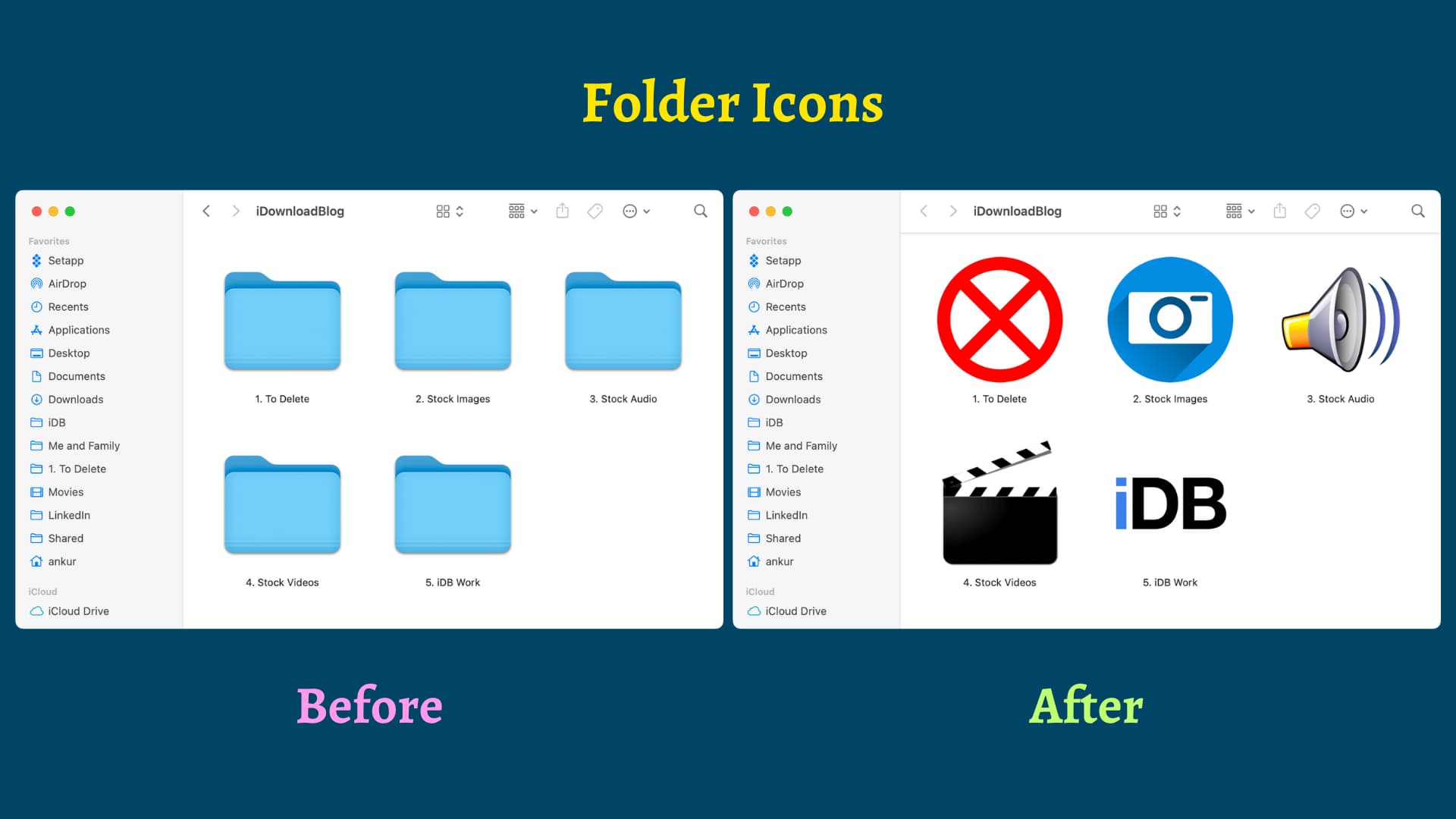
Customizing your Windows Folder Icons can significantly enhance your productivity and make your desktop environment more visually appealing. Whether you're a casual user looking to personalize your workspace or a professional aiming to organize your files more efficiently, changing folder icons is a straightforward process. This guide will walk you through the steps to customize your Windows Folder Icons, from basic changes to more advanced customization techniques.
Understanding Windows Folder Icons
Windows Folder Icons are graphical representations of folders on your desktop or within File Explorer. By default, these icons are standardized, but Windows allows users to change them to better suit their preferences or organizational needs. Customizing these icons can help you quickly identify different types of folders, making it easier to navigate your file system.
Why Customize Windows Folder Icons?
There are several reasons why you might want to customize your Windows Folder Icons:
- Visual Appeal: Personalizing your icons can make your desktop look more attractive and unique.
- Organization: Different icons for different types of folders can help you stay organized and find files more quickly.
- Productivity: Custom icons can serve as visual cues, helping you remember what each folder contains without having to open it.
- Branding: For professionals, custom icons can align with your brand identity, making your workspace look more cohesive.
Basic Customization of Windows Folder Icons
Changing the icons of your folders is a simple process that can be done through File Explorer. Here’s how you can do it:
Step-by-Step Guide to Changing Folder Icons
1. Open File Explorer: Navigate to the folder whose icon you want to change.
2. Access Folder Properties: Right-click on the folder and select Properties from the context menu.
3. Customize Icon: In the Properties window, go to the Customize tab. Click on the Change Icon button.
4. Select a New Icon: A window will open displaying a list of available icons. You can choose from the pre-installed icons or browse for a custom icon file (.ico).
5. Apply Changes: Select the icon you want and click OK. Then, click Apply and OK to save your changes.
💡 Note: If you want to use a custom icon file, make sure it is in .ico format. You can find free icon packs online or create your own using graphic design software.
Advanced Customization Techniques
For those who want to take their customization to the next level, there are more advanced techniques you can use. These methods involve using third-party tools and scripts to apply custom icons to multiple folders at once or to create more complex icon sets.
Using Third-Party Tools
There are several third-party tools available that can help you customize your Windows Folder Icons more efficiently. Some popular options include:
- Folder Marker: This tool allows you to change folder icons with a single click and offers a wide range of custom icons.
- Folderico: Another powerful tool that provides a user-friendly interface for changing folder icons and supports batch processing.
- IconPackager: This tool not only changes folder icons but also allows you to customize other system icons, giving your entire desktop a cohesive look.
Batch Customization with Scripts
If you have a large number of folders to customize, using a script can save you a lot of time. Here’s a basic example of a PowerShell script that changes the icon of multiple folders:
1. Open Notepad: Create a new text file and open it in Notepad.
2. Write the Script: Copy and paste the following script into the file:
# PowerShell Script to Change Folder Icons
$folders = @("C:PathToFolder1", "C:PathToFolder2")
$iconPath = "C:PathToYourIcon.ico"

foreach ($folder in $folders) {
    $shell = New-Object -ComObject Shell.Application
    $folderItem = $shell.NameSpace($folder)
    $folderItem.Self.Properties("Icon").Value = $iconPath
}
3. Save the Script: Save the file with a .ps1 extension, for example, ChangeFolderIcons.ps1.
4. Run the Script: Open PowerShell with administrative privileges and navigate to the directory where you saved the script. Run the script by typing .ChangeFolderIcons.ps1 and pressing Enter.
💡 Note: Make sure to replace the paths in the script with the actual paths to your folders and icon file. Also, ensure that PowerShell execution policies allow running scripts.
Creating Custom Icons
If you can't find the perfect icon for your folders, you can create your own. There are several tools available that can help you design custom icons:
Popular Icon Design Tools
1. GIMP: A free and open-source image editor that supports creating and editing icons.
2. Inkscape: Another free tool that is great for vector graphics and can be used to create scalable icons.
3. Iconion: A user-friendly tool specifically designed for creating icons. It offers a variety of templates and customization options.
4. Adobe Illustrator: A professional-grade tool that provides advanced features for icon design.
Steps to Create a Custom Icon
1. Choose Your Tool: Select the icon design tool that best fits your needs.
2. Design Your Icon: Create your icon design, ensuring it is square and has a transparent background if needed.
3. Export as .ico: Save your design in .ico format. Most icon design tools will have an option to export in this format.
4. Apply the Icon: Use the steps outlined in the Basic Customization section to apply your new icon to your folders.
💡 Note: When designing icons, keep in mind that they should be simple and recognizable, as they will be displayed at small sizes.
Troubleshooting Common Issues
While customizing Windows Folder Icons is generally straightforward, you might encounter some issues. Here are some common problems and their solutions:
Icon Not Changing
If the icon does not change, ensure that you have selected the correct icon file and that it is in .ico format. Also, make sure you have the necessary permissions to change the folder properties.
Icon Disappears After Restart
If the custom icon disappears after restarting your computer, it might be due to a system update or a conflict with another application. Try reapplying the icon or using a different icon file.
Icon Looks Blurry
If the icon appears blurry, it might be due to the resolution of the icon file. Ensure that the icon is high-resolution and suitable for the size at which it will be displayed.
Best Practices for Customizing Windows Folder Icons
To get the most out of your customization efforts, follow these best practices:
- Consistency: Use a consistent style and color scheme for your icons to maintain a cohesive look.
- Simplicity: Keep your icons simple and easy to recognize, as they will be displayed at small sizes.
- Organization: Use different icons for different types of folders to help you stay organized.
- Backup: Always keep a backup of your original icons in case you need to revert to the default settings.
Customizing your Windows Folder Icons can significantly enhance your desktop experience. By following the steps and tips outlined in this guide, you can create a more personalized and organized workspace. Whether you're using basic customization techniques or advanced tools and scripts, the key is to find a method that works best for you and your needs.
In conclusion, customizing Windows Folder Icons is a powerful way to enhance your productivity and make your desktop environment more visually appealing. By understanding the basics of icon customization and exploring advanced techniques, you can create a workspace that is both functional and aesthetically pleasing. Whether you’re a casual user or a professional, taking the time to customize your folder icons can make a significant difference in how you interact with your files and folders.
Related Terms:
- downloadable folder icons windows 10
- windows folder ico
- folder icons windows 10 download
- windows 11 style folder icons
- windows 10 folder icon pack
- desktop icons