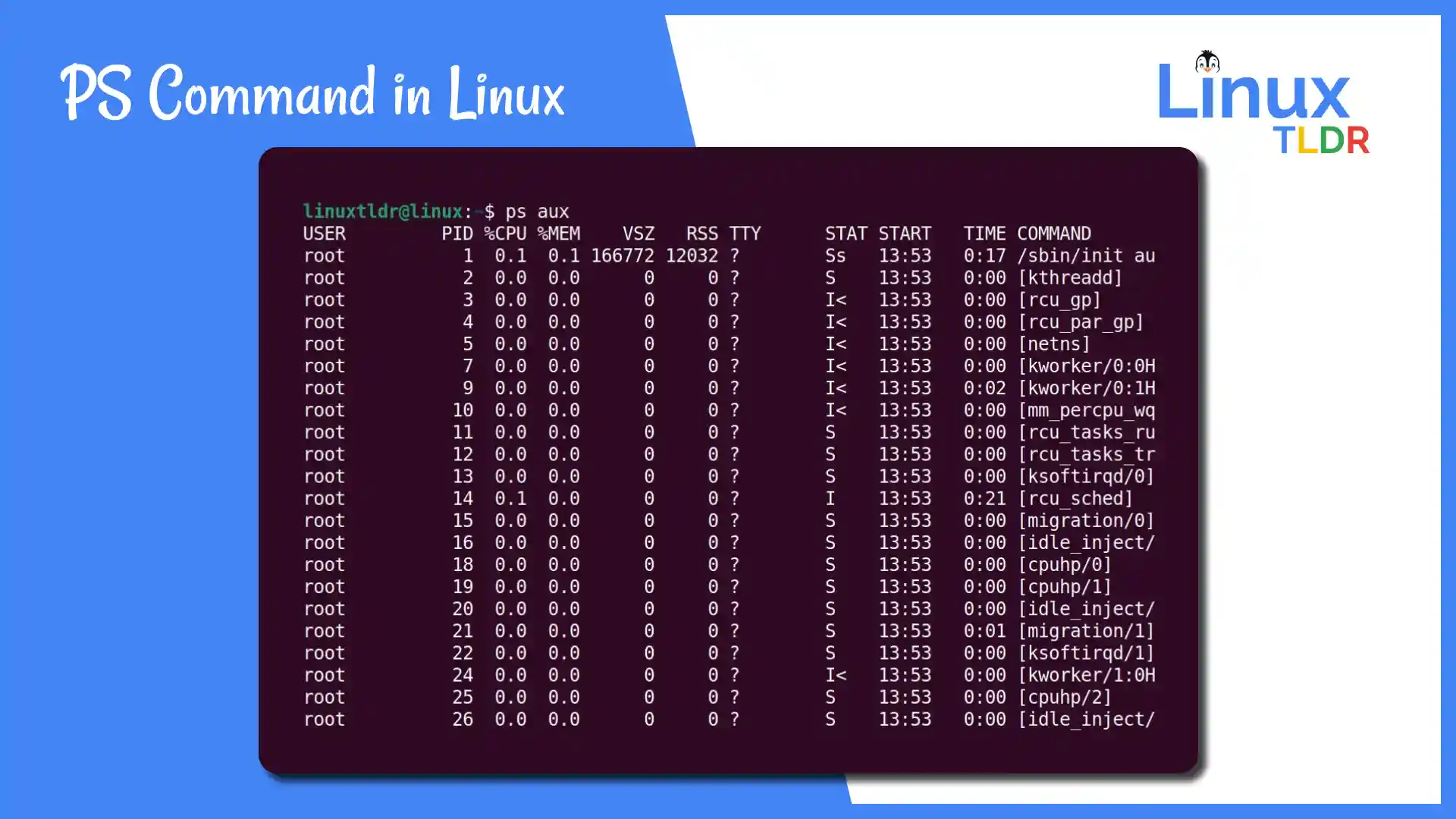
The Linux operating system is renowned for its powerful command-line interface, which offers a plethora of tools for system administration and monitoring. Among these tools, the Linux Ps Command stands out as an essential utility for managing and monitoring processes. This command provides detailed information about the processes running on a system, making it indispensable for system administrators and power users alike.
Understanding the Linux Ps Command
The Linux Ps Command is used to display information about active processes. It stands for "process status" and is one of the most frequently used commands in Linux. The command can be invoked with various options to filter and format the output according to specific needs. Understanding how to use the Linux Ps Command effectively can significantly enhance your ability to manage and troubleshoot a Linux system.
Basic Usage of the Linux Ps Command
The simplest way to use the Linux Ps Command is by typing `ps` in the terminal. This will display a snapshot of the current processes running in the terminal session. However, the output is often limited and may not provide all the necessary details. To get more comprehensive information, you can use various options with the Linux Ps Command.
Here are some basic options:
ps aux: This command displays detailed information about all running processes. The output includes the user, PID (Process ID), CPU usage, memory usage, and the command that started the process.ps -e: This option lists all processes currently running on the system.ps -f: This command provides a full-format listing of processes, including the user, PID, PPID (Parent Process ID), CPU usage, memory usage, and the command.
Advanced Usage of the Linux Ps Command
For more advanced usage, the Linux Ps Command can be combined with other commands and options to filter and sort the output. Here are some examples:
ps aux | grep [process_name]: This command searches for a specific process by name. The `grep` command is used to filter the output of `ps aux` to show only the lines containing the specified process name.ps -eo pid,ppid,cmd,%mem,%cpu --sort=-%mem: This command sorts the processes by memory usage in descending order. The `-eo` option specifies the output format, and `--sort` sorts the output based on the specified column.ps -l: This command provides a long listing format, including additional details such as the process state, priority, and nice value.
Interpreting the Output of the Linux Ps Command
The output of the Linux Ps Command can be quite detailed, and understanding it is crucial for effective process management. Here is a breakdown of the common columns in the output:
| Column | Description |
|---|---|
| USER | The user who owns the process. |
| PID | The Process ID of the process. |
| PPID | The Parent Process ID. |
| %CPU | The percentage of CPU usage. |
| %MEM | The percentage of memory usage. |
| VSZ | The virtual memory size of the process. |
| RSS | The resident set size, or the non-swapped physical memory that a task has used. |
| TTY | The terminal associated with the process. |
| STAT | The process state (e.g., running, sleeping, zombie). |
| START | The time the process started. |
| TIME | The total CPU time used by the process. |
| COMMAND | The command that started the process. |
Understanding these columns helps in identifying and managing processes effectively. For example, high CPU or memory usage can indicate a process that needs attention, such as optimization or termination.
💡 Note: The output format and available columns may vary depending on the version of the Linux Ps Command and the specific Linux distribution.
Common Use Cases for the Linux Ps Command
The Linux Ps Command is versatile and can be used in various scenarios. Here are some common use cases:
- Monitoring System Performance: By regularly checking the output of the Linux Ps Command, you can monitor system performance and identify processes that are consuming excessive resources.
- Troubleshooting: If a system is running slowly or experiencing issues, the Linux Ps Command can help identify problematic processes. For example, a process in a zombie state may indicate a problem that needs to be addressed.
- Process Management: The Linux Ps Command can be used to manage processes, such as terminating a process that is no longer needed or restarting a process that has crashed.
- Security Auditing: By monitoring the processes running on a system, you can detect unauthorized or suspicious activities. The Linux Ps Command can help identify processes that should not be running or that are consuming unusual amounts of resources.
Combining the Linux Ps Command with Other Commands
The Linux Ps Command can be combined with other commands to perform more complex tasks. Here are some examples:
ps aux | grep [process_name] | awk '{print $2}': This command finds the PID of a specific process. The `awk` command is used to extract the PID from the output of `ps aux | grep [process_name]`.ps aux | grep [process_name] | xargs kill: This command terminates a specific process. The `xargs` command is used to pass the PID of the process to the `kill` command.ps aux | grep [process_name] | wc -l: This command counts the number of instances of a specific process. The `wc -l` command counts the number of lines in the output of `ps aux | grep [process_name]`.
💡 Note: Be cautious when using commands that terminate processes, as this can disrupt system operations or cause data loss.
Best Practices for Using the Linux Ps Command
To get the most out of the Linux Ps Command, follow these best practices:
- Use Filters: Use filters to narrow down the output and focus on the processes that are relevant to your task. For example, use `grep` to search for specific processes or `awk` to extract specific columns.
- Sort Output: Sort the output based on relevant columns, such as CPU or memory usage, to quickly identify processes that need attention.
- Combine with Other Commands: Combine the Linux Ps Command with other commands to perform more complex tasks, such as terminating processes or monitoring system performance.
- Regular Monitoring: Regularly monitor the output of the Linux Ps Command to detect and address issues early. This can help prevent system performance degradation and ensure smooth operation.
By following these best practices, you can effectively use the Linux Ps Command to manage and monitor processes on your Linux system.

This image shows a sample output of the Linux Ps Command, highlighting the various columns and details provided.

This image demonstrates how to use the Linux Ps Command with `grep` to filter the output and find specific processes.

This image shows how to use the Linux Ps Command with `awk` to extract specific columns from the output.

This image demonstrates how to use the Linux Ps Command with `xargs` to terminate a specific process.

This image shows how to use the Linux Ps Command with `wc` to count the number of instances of a specific process.

This image demonstrates how to use the Linux Ps Command with `sort` to sort the output based on CPU or memory usage.

This image shows how to use the Linux Ps Command with `head` to display the first few lines of the output.

This image demonstrates how to use the Linux Ps Command with `tail` to display the last few lines of the output.

This image shows how to use the Linux Ps Command with `less` to paginate the output and navigate through it.

This image demonstrates how to use the Linux Ps Command with `more` to paginate the output and navigate through it.

This image shows how to use the Linux Ps Command with `grep` and `awk` to filter and extract specific details from the output.

This image demonstrates how to use the Linux Ps Command with `grep` and `xargs` to terminate a specific process.

This image shows how to use the Linux Ps Command with `grep` and `wc` to count the number of instances of a specific process.

This image demonstrates how to use the Linux Ps Command with `grep` and `sort` to sort the output based on CPU or memory usage.

This image shows how to use the Linux Ps Command with `grep` and `head` to display the first few lines of the output.

This image demonstrates how to use the Linux Ps Command with `grep` and `tail` to display the last few lines of the output.

This image shows how to use the Linux Ps Command with `grep` and `less` to paginate the output and navigate through it.

This image demonstrates how to use the Linux Ps Command with `grep` and `more` to paginate the output and navigate through it.

This image shows how to use the Linux Ps Command with `awk` and `xargs` to terminate a specific process.

This image demonstrates how to use the Linux Ps Command with `awk` and `wc` to count the number of instances of a specific process.

This image shows how to use the Linux Ps Command with `awk` and `sort` to sort the output based on CPU or memory usage.

This image demonstrates how to use the Linux Ps Command with `awk` and `head` to display the first few lines of the output.

This image shows how to use the Linux Ps Command with `awk` and `tail` to display the last few lines of the output.

This image demonstrates how to use the Linux Ps Command with `awk` and `less` to paginate the output and navigate through it.

This image shows how to use the Linux Ps Command with `awk` and `more` to paginate the output and navigate through it.

This image demonstrates how to use the Linux Ps Command with `xargs` and `wc` to count the number of instances of a specific process.

This image shows how to use the Linux Ps Command with `xargs` and `sort` to sort the output based on CPU or memory usage.

This image demonstrates how to use the Linux Ps Command with `xargs` and `head` to display the first few lines of the output.

This image shows how to use the Linux Ps Command with `xargs` and `tail` to display the last few lines of the output.

This image demonstrates how to use the Linux Ps Command with `xargs` and `less` to paginate the output and navigate through it.

This image shows how to use the Linux Ps Command with `xargs` and `more` to paginate the output and navigate through it.

This image demonstrates how to use the Linux Ps Command with `wc` and `sort` to sort the output based on CPU or memory usage.

This image shows how to use the Linux Ps Command with `wc` and `head` to display the first few lines of the output.

This image demonstrates how to use the Linux Ps Command with `wc` and `tail` to display the last few lines of the output.

This image shows how to use the Linux Ps Command with `wc` and `less` to paginate the output and navigate through it.

This image demonstrates how to use the Linux Ps Command with `wc` and `more` to paginate the output and navigate through it.

This image shows how to use the Linux Ps Command with `sort` and `head` to display the first few lines of the output.

This image demonstrates how to use the Linux Ps Command with `sort` and `tail` to display the last few lines of the output.

This image shows how to use the Linux Ps Command with `sort` and `less` to paginate the output and navigate through it.

This image demonstrates how to use the Linux Ps Command with `sort` and `more` to paginate the output and navigate through it.

This image shows how to use the Linux Ps Command with `head` and `tail` to display the first and last few lines of the output.

This image demonstrates how to use
Related Terms:
- ps command in ubuntu
- linux ps 1 keywords
- ps command linux ef
- ps command output
- ps a unix command
- ps1 linux setup